Radio Controller
This project provides all the information on our new radio controllers for the RoboRacer racecars. They have much better connection to the car and allow for greater customization than the old Logitech gamepads. A rough structure of the project is:
Radiomaster Pocket ELRS 2.4GHz Controller <– ELRS Protocol –> any 2.4GHz ELRS Receiver (currently: Happymodel EP1 Nano) <– UART –> STM32F103C8 (aka Bluepill) <– male micro USB to male USB-A cable –> PC (car, laptop)
General Use
- Install the gimbal sticks by screwing them into the gimbals. Remove them when storing the controller to protect the gimbals and keep the sticks at the back of the controller in their slots.
- Power-on the remote by pressing the power button until the four squares are displayed and the controller rumbles.
- Clear the throttle and button warnings by moving the left gimbal down and resetting all the buttons to be off.
- If the STM32F103C8 is connected and the paired receiver is powered up, the remote connects automatically. It also reconnects automatically after loosing connection (both is announced by the controller with a voice-line). The receiver indicates its looking for a connection by slow-blinking of its green LED. When it is connected the LED is on continuously.
- If the receiver is turned on and no remote connects to it within 60 seconds, it switches into config mode: the green LED will blink rapidly and it starts a WIFI network, which can be used to update its firmware. Power the receiver down and back up to for it to look for connections to the remote. Once the receiver was connected to a controller, if it loses connection, it will not go into configuration mode (even after more than 60 seconds have passed), but keep looking to reconnect to the controller.
- The currently used buttons are as follows
- The left gimbal (yellow) is used to control the vehicle’s speed.
- The right gimbal (pink) is used to control the vehicle’s steering.
- The left shoulder button (blue) is used to put the vehicle into speed mode: the position of the left gimbal then corresponds to the speed of the vehicle. A green LED indicates that this button is active.
- The right shoulder button (green) is used to put the vehicle into acceleration mode: the position of the left gimbal then corresponds to the acceleration of the vehicle (going backwards is not possible in this mode). A green LED indicates that this button is active.
- The back left momentary switch (red) is the deadman switch for autonomous driving: as long as this switch is held down, the algorithm will drive the car autonomously.
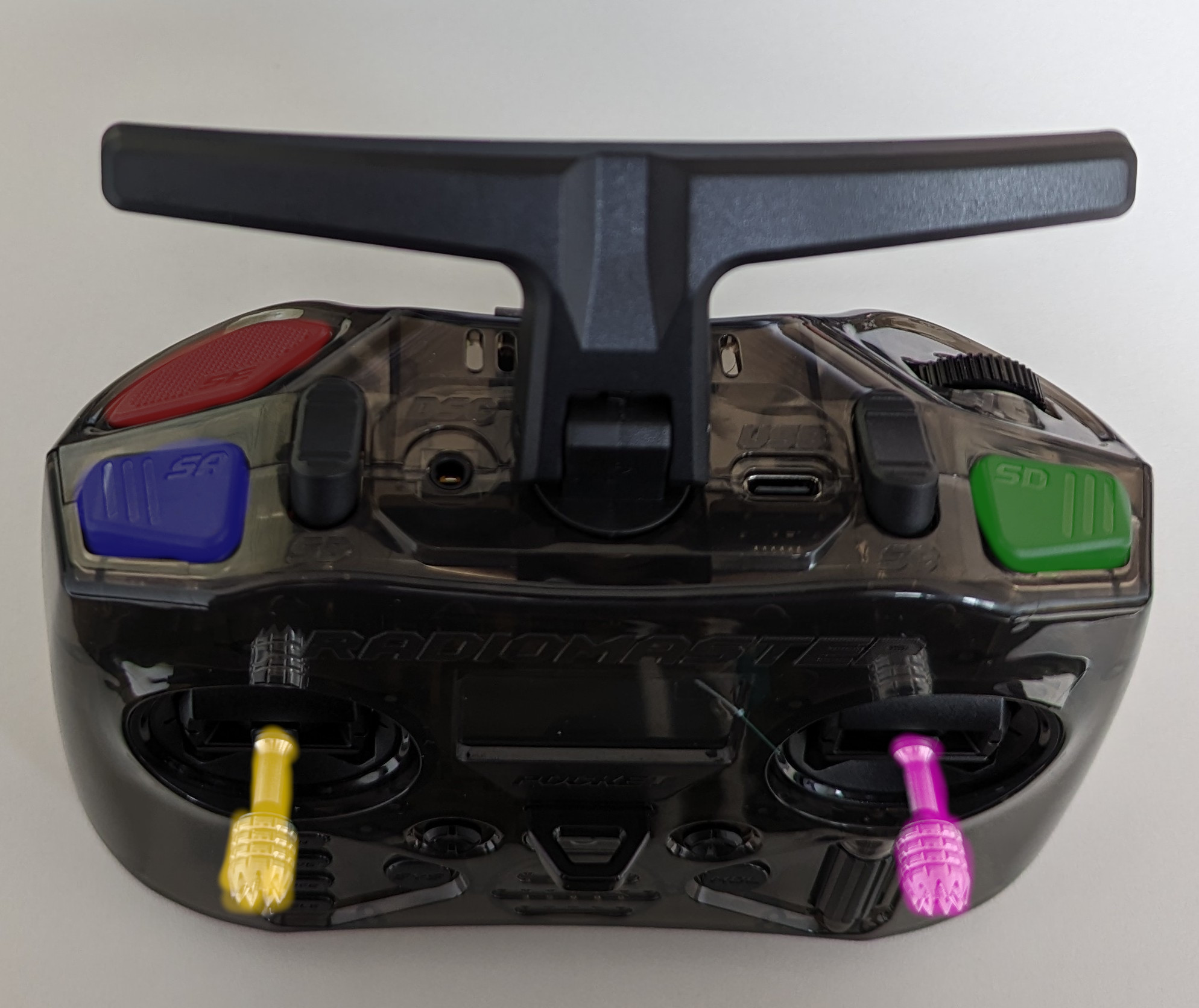
- The control can be charged via the USB-C port on the bottom. The USB-C port on the top is to use the controller as a joystick on a PC (for example, as wired connection to train in flight sims). Never connect both USB-C ports simultaneously, this will break the controller!
- Power-off the remote by pressing and holding the power button until the squares on the display disappear. If the receiver is connected, you will receive a warning which you have to clear by pressing enter via the scroll wheel below the right gimbal.
- The
SYSbutton opens the settings, the scroll wheel can then be used to navigate up and down. Use thepage<,page>buttons to move between menu pages. With a long press of theRTNbutton one can return from the menu to the home screen. On the home screen thepage<,page>buttons allow to change the additional information that can be viewed. - To switch the transmission power level in case of bad connection
- press the
SYSbutton - move into the ExpressLRS menu by clicking the wheel.
- scroll to and select
TX Powerfrom the menu via clicking the wheel. - select
Max Powervia clicking the wheel and scrolling to select the desired output power, click again to confirm it - Press and hold the
RTNbutton to go back to the home screen
- press the
Hardware Overview
- Radiomaster Pocket ELRS 2.4GHz (LBT) Controller: Chosen for its size and similarity to a gamepad and the momentary shoulder switch, which is ideal for use as a deadman switch. It can also support other protocols (CRSF, FreeSky, etc.), other frequencies (ELRS 915/868MHz) and more output power (up to 1W) via the external nano module bay. Note that the receiver needs to match the protocol and frequency of the transmittor module. We chose ELRS 2.4GHz since this frequency is free to use all over the world.
- 2 pieces of 18650 batteries: for the controller, can be charged by the controller
- SD-Card: apparently the SD-card coming with the controller (512MB) is unreliable, therefore we switched to SanDisk ones, any reputable brand will do.
- Happymodel EP1 Nano ELRS 2.4GHz Receiver: Any other ELRS 2.4GHz receiver can be chosen. This receives the signal from the controller and sends it via UART to the STM32 microcontroller.
- STM32F103C8 aka Bluepill board: This microcontroller does not seem to be in production anymore, but the clones also do the job and are relatively cheap. It takes the input data from the ELRS receiver via UART and emulates a USB computer joystick (USB HID device). The original repository can be found here (note that the CRSF firmware has to be used from this repo for some reason).
- Male micro USB to male USB-A data cable: to connect the microcontroller to the PC (car, laptop…).
- Either an ST-Link programmer or an FTDI adapter (FT232RL USB to TTL Serial) in order to flash the firmware onto the STM32 microcontroller
Initial Setup
Radiomaster Pocket Controller
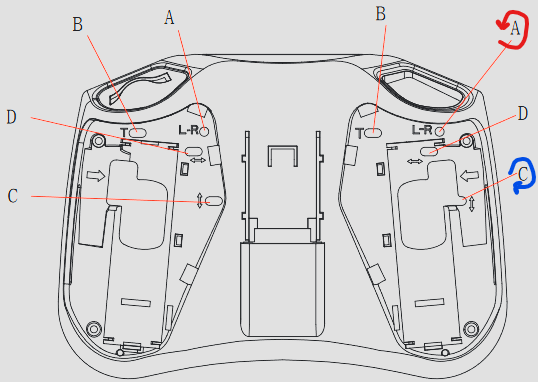
- Remove the soft rubber on the back on both sides.
- Make left gimbal self centering (horizontally): with the controller lying on the front, using a 1.5mm hex wrench, on the right side: turn the L-R (red in picture) counter-clockwise (a fair bit, this allows for vertical stick tension) and turn the screw marked with up-down arrows clockwise (blue in picture) also a fair bit (this increases the vertical stick tension).
- Install the batteries in the correct way in the back of the controller.
- Reinstall the soft rubber on the back on both sides.
- If using a new SD-card: the file system must be FAT32 and the Pocket ELRS firmware must be put on it (all the folders inside the SD-Content and Restore-Default-Settings have to be copied onto the SD-card). Afterwards remove the old SD-card and install the new one at the bottom of the controller.
Connecting the STM32F103C8 to the Receiver
The table shows the wiring (check the documentation of the receiver for its connector arrangement!):
| Receiver | STM32F103C8 (Bluepill) |
|---|---|
| TX | PA3 (USART2 RX) |
| 5V | 5V |
| GND | GND |
| RX | currently not connected |
For the Happymodel EP1 Nano, this is the current wiring:
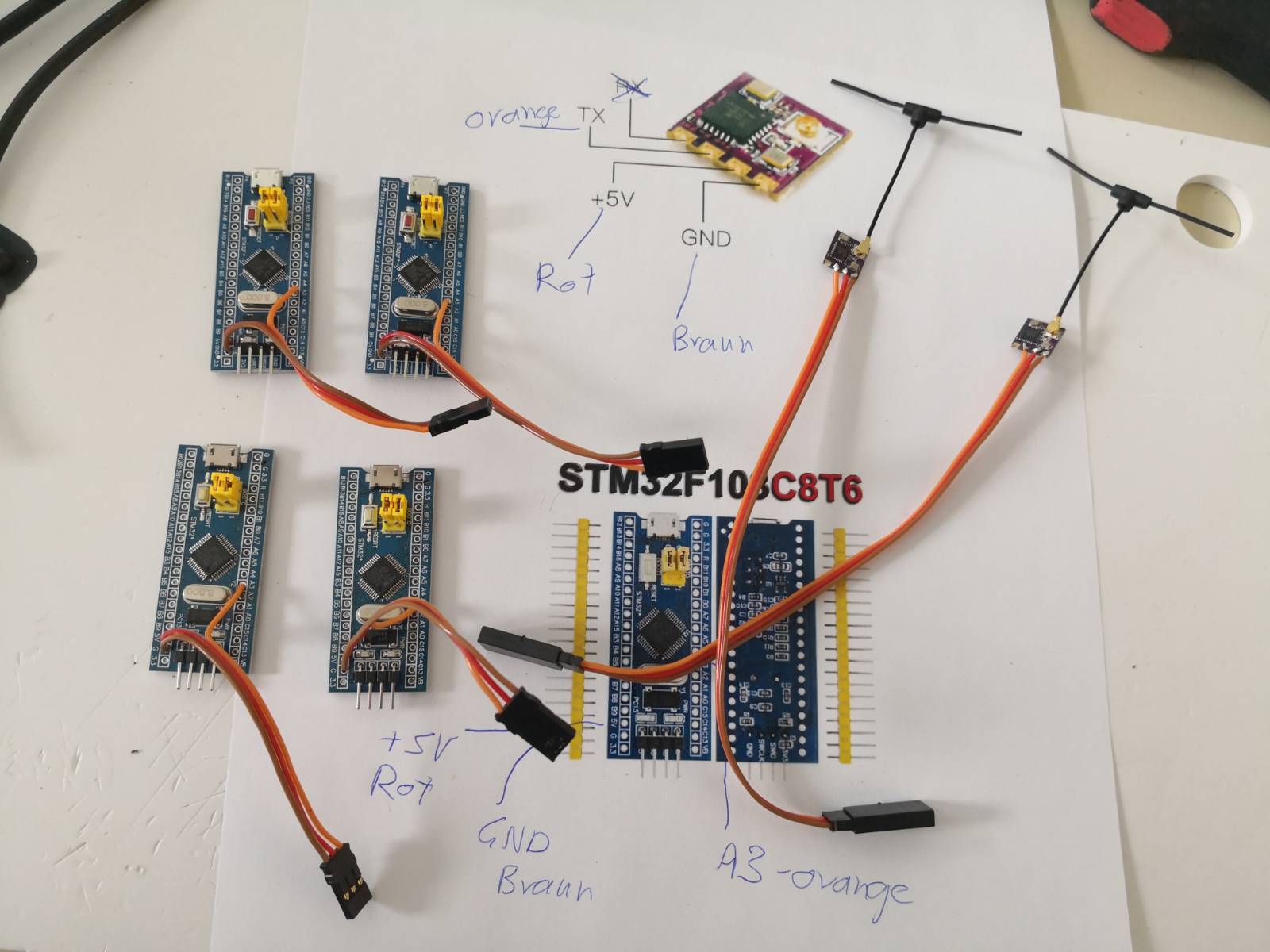
Binding the Receiver to the Controller
- Make sure the Controller is turned off
- Disconnect and reconnect the power to the receiver three times (for example by un- and re-plugging the USB to the STM32F103C8). The green LED on the receiver should start to blink twice and pause to indicate pairing mode.
- Turn the controller on by long pressing the power button until all four squares appear on the screen and the controller rumbles for a short period. If met with a throttle/button warning, turn the left gimbal to the bottom and set all buttons to their off-state (the two three-position switches must be in the back-position).
- Press the SYS button to get to the TOOLS page.
- Press the wheel below the right-gimbal to enter the ExpressLRS menu.
- Using the wheel, scroll to the
[Bind]option and press the wheel to select it. - The green LED on the receiver should stop to double-blink and light up continuously to indicate that it is connected to the remote.
- You can leave the menu by long-pressing the RTN button.
Flashing the Binaries to the STM32F103C8
- The binaries can be downloaded from releases
- To connect the hardware used to flash the STM32F103C8, look up a tutorial, as this step depends on your flashing hardware (FTDI tutorial: use this to flash our binaries and not the maple bootloader as they do in their tutorial)
Using ST-LINK
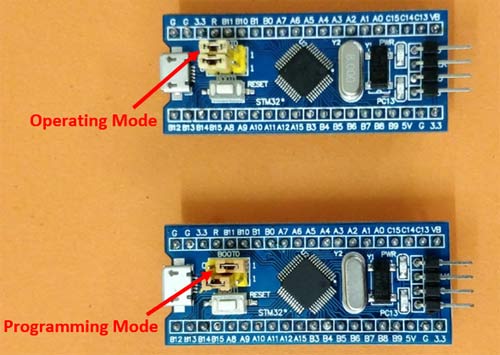
- Put the STM32F103C8 in programming mode: move the BOOT0 jumper to the 1 position (see picture above).
- Install STM32CubeProgrammer
- Connect the ST-Link programmer (which you already connected with the help of a tutorial to the STM32F103C8) to your PC.
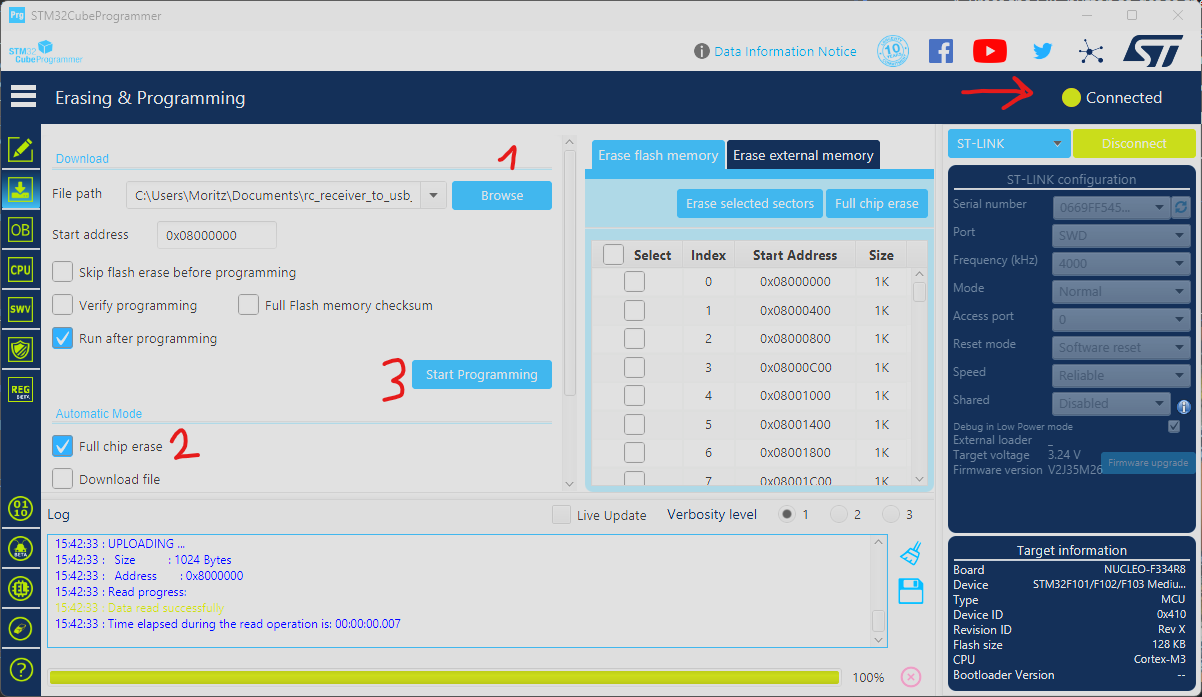
- In the STM32CubeProgrammer make sure the STM32 is connected, select the firmware file, select full chip erase and start programming the board (refer to screenshot below).
- Put the STM32F103C8 in operating mode: move the BOOT0 jumper back to the 0 position (see picture from step 1).
Using an FTDI adapter
- Put the STM32F103C8 in programming mode: move the BOOT0 jumper to the 1 position (see picture at Using ST-LINK, step 1 above).
- Install STM32 Flash Loader Demonstrator
- Connect the FTDI adapter (which you already connected with the help of a tutorial to the STM32F103C8) to your PC.
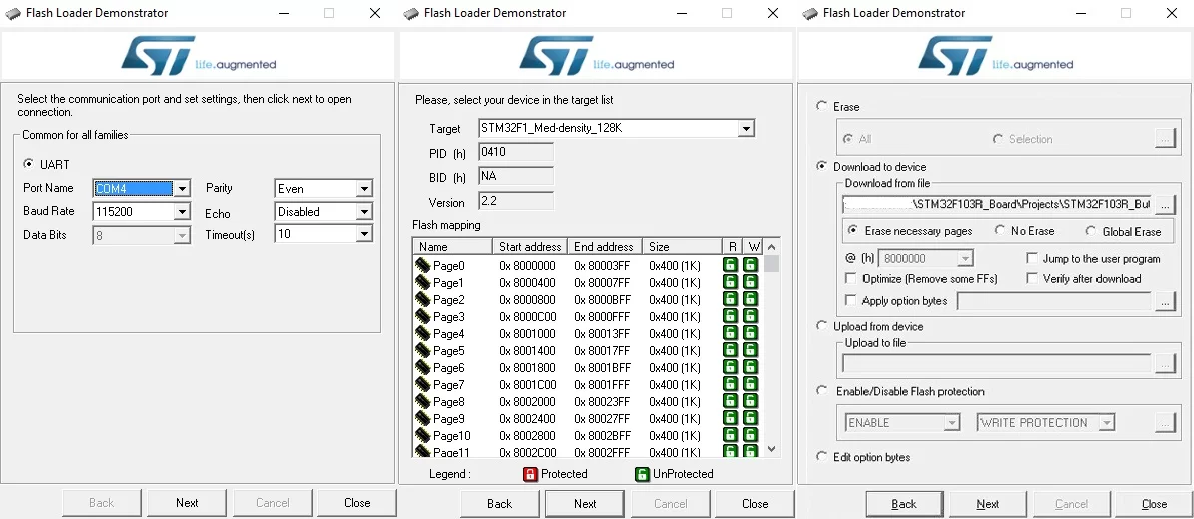
- Start the ‘Flash Loader Demonstrator’
- Select the port of the FTDI adapter and click next.
- The device in the target list should be correct, check it and click next.
- Click ‘Download to Device’, choose our firmware binaries in the ‘Download from file’ textbox, check ‘Erase necessary pages’ and click next.
- After successfully flashing, put the STM32F103C8 back into operating mode: move the BOOT0 jumper back to the 0 position (see picture at Using ST-LINK, step 1 above).
Testing the Functionality
To test the functionality of the controller:
- Turn on the controller
- Connect the STM32F103C8 to the PC via a micro-USB B to A cable.
- open a testing program: Linux users can use jstest-gtk, Windows users can use the setup game controllerfunction.
- If nothing moves: make sure the controller is connected to the receiver and the STM32F103C8 is in operating mode and push the reset button.
Development
The original code is from here. Platformio is used to develop, its a VSCode extension and very easy to install. The current configuration of the STM32F103C8 is:
- 4 analog channels (0…2047)
- 8 buttons (binary) With the Radiomaster Pocket we currently can use all 4 analog channels and 6 of the buttons (one of them being the wheel at the back).
Debugging
Debugging can be enabled by commenting out the options in the platformio.ini file. However, debugging requires an ST-Link programmer connected to the STM32F103C8.